Last checked: 15 October 2026. Media Purge details are from its WordPress.org readme (version 1.4.6). WP Media Cleanup is not on WordPress.org, so its details are from Duplicator’s own product page and documentation (plugin version 1.0.20). Disclosure: we make Media Purge.
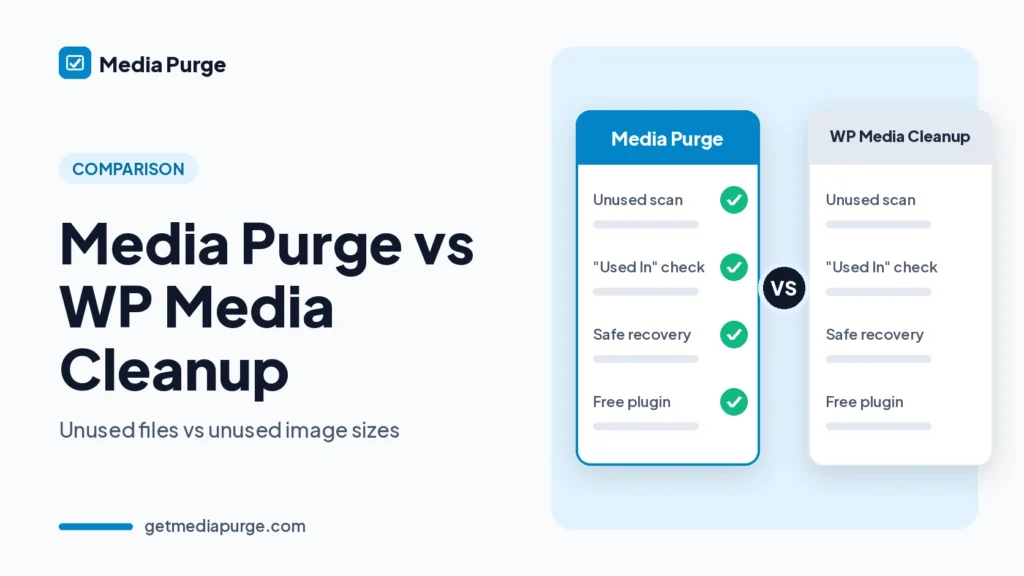
These two plugins sound alike but solve different problems. WP Media Cleanup, a paid plugin from the Duplicator team, deletes unused image size variations (the thumbnail, medium, large and custom sizes WordPress generates) and never deletes your original uploads. Media Purge is free and finds whole media files that nothing on your site uses, shows where every other file is used, and moves the unused ones to a recoverable trash. If your problem is old uploads nobody needs anymore, you want an unused-media scanner. If your problem is too many generated sizes of images you still use, you want a size-variation cleaner. Some sites need both.
Quick comparison
| Feature | Media Purge | WP Media Cleanup (Duplicator) |
|---|---|---|
| Price | Free (core cleanup stays free; a paid tier is planned) | Paid only. Plans from $29 for the first year (1 site, introductory price, renews at $59) on 15 Oct 2026 |
| Where to get it | WordPress.org plugin directory | duplicator.com (not on WordPress.org) |
| Removes unused original uploads | Yes (whole unused media files) | No. Originals are never deleted |
| Removes unused image size variations of images you keep | No | Yes (its main job) |
| Non-image files (PDF, video, audio) | Yes, any media file in the library | Not described (image sizes only) |
| “Used In” list with edit links per file | Yes | Not described |
| Page builders | Elementor, Divi, WPBakery, Beaver Builder (free) | Page builder data in post meta (docs name SeedProd, Elementor, Beaver Builder) |
| WooCommerce | Product featured images and galleries | Category thumbnails (term meta); other WooCommerce data not described separately |
| ACF repeaters / serialized custom fields | Not listed (use Whitelist) | Yes (serialized post meta scan) |
| Hardcoded images in theme files | Not scanned (use Whitelist) | Yes (active and parent theme PHP, CSS, JSON) |
| Review before delete | Yes | Yes |
| Recoverable delete | Internal trash, 30 days by default (adjustable), Recovery tab | Backup copy, 30 days by default (1 to 365), Restore screen |
| Whitelist / keep forever | Yes | Choose image sizes to always keep |
| Duplicate image finder | Yes (byte-identical files by MD5; merge planned) | Not described |
| CSV export | Yes | Not described |
| WP-CLI | No | Yes (find, delete, restore, stats) |
| Multisite | Single site only (multisite planned) | Not described |
The real difference: unused files vs unused sizes
Every image you upload is stored once as the original and then again in several sizes. WP Media Cleanup looks at those generated sizes. If an image is in use but its 300×300 copy never appears anywhere, it can remove that copy and keep the rest. Duplicator’s documentation says it always keeps the thumbnail and full sizes, protects sizes WordPress uses in responsive srcset markup, and never touches the original file.
Media Purge works one level up. It checks whether a media item is used at all, across post content, post meta, widgets, Customizer settings, WooCommerce galleries and supported page builders. An old banner that no page references is flagged as a whole, with all its sizes, so you can review it, trash it and restore it if you were wrong. That is also why Media Purge covers PDFs, videos and other non-image files, while a size cleaner only deals with image copies.
So the useful question isn’t which plugin is better. It’s which kind of clutter you have. A blog with years of replaced featured images mostly has unused files. A site that changed themes several times often has a pile of size variations nobody needs. For a deeper walkthrough of both problems, see the WordPress media library cleanup guide.
When Media Purge is the better fit
- You want to remove media nobody uses anymore, not just extra sizes of images you keep. See how to find unused images in WordPress.
- You want to see where a file is used before you touch it. Each file shows a Used In list, for example Featured Image in “About Us”, with a link to edit that content.
- You don’t want to pay for cleanup. Scan, review, trash, restore and CSV export are free, with no scan limits.
- You build with Elementor, Divi, WPBakery or Beaver Builder and want those layouts scanned in the free version.
- You also need to find duplicate uploads. Media Purge groups byte-identical files and shows the wasted storage. See how to find duplicate images in WordPress.
When WP Media Cleanup is the better fit
- Your storage problem is generated image sizes, for example after several theme changes, and you want originals left exactly as they are.
- You manage many sites from the terminal. Its WP-CLI commands cover finding, deleting and restoring variations.
- Images are hardcoded in your theme or stored in ACF repeaters. Its documentation lists theme file and serialized custom field scanning.
- You already pay for Duplicator Pro. Duplicator’s pricing page lists WP Media Cleanup as included in its Pro and Elite plans, and the docs recommend a Duplicator backup before cleanup.
Can you use both?
Yes, and on some sites that makes sense, one at a time. Run Media Purge first to trash media nobody uses, check the site, and empty its trash when you’re sure. Then run a size-variation cleaner on the images that remain. Don’t run both cleanups on the same files at the same moment, because each plugin keeps its own trash or backup and restores only what it removed. Whatever you use, take a full backup before you delete anything for good.
How cleanup works in Media Purge
- Scan (read-only) across post content, post meta, widgets, Customizer settings, WooCommerce galleries and supported builder data.
- Review each file’s size and Used In links.
- Trash unused files into the plugin’s internal trash.
- Restore from the Recovery tab during the retention period, or delete permanently when you’re sure.
Details: how Media Purge works. Comparing other plugins too? Read Media Purge vs Media Cleaner and Media Purge vs Media Hygiene.
FAQ
Is there a free version of WP Media Cleanup?
Not that we could find. On 15 October 2026 Duplicator sold it only as paid plans (Basic, Plus, Pro) or included in Duplicator Pro’s Pro and Elite plans, with a 14-day money-back guarantee, and it is not listed on WordPress.org.
Does WP Media Cleanup delete unused images?
It deletes unused size variations of images. Duplicator’s documentation says original full-size images are never deleted, so an upload that no page uses at all stays in your library.
What is a free alternative to WP Media Cleanup?
If you want to remove whole unused media files, Media Purge is free on WordPress.org and adds Used In links, a recoverable trash and a duplicate finder. It doesn’t trim unused image sizes of images you keep, so it isn’t a like-for-like replacement for that one job.
Does Media Purge delete files automatically?
No. The scanner is read-only. Files move to the internal trash only when you choose, stay recoverable for 30 days by default (adjustable), and are permanently deleted when you click Delete Permanently or when the retention period ends.
Will either plugin catch images loaded by custom code?
Not always. Duplicator’s docs say WP Media Cleanup doesn’t catch image paths built in custom PHP or loaded by JavaScript. Media Purge doesn’t read theme files, so use its Whitelist for files a theme or custom code loads.
Sources: Media Purge on WordPress.org · WP Media Cleanup product page · WP Media Cleanup scan documentation · WP Media Cleanup features.