Install. Scan. Clean up safely.
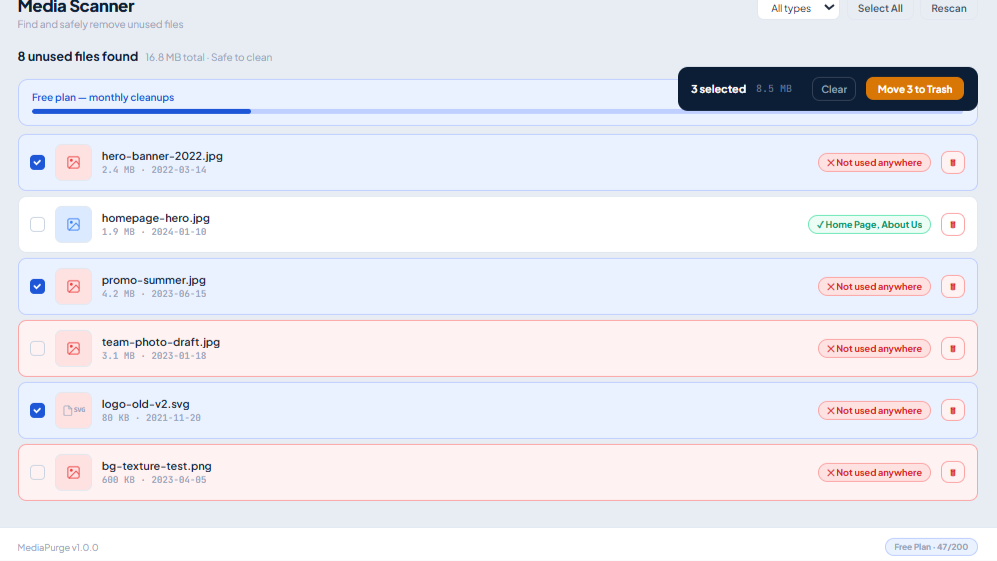
From installation to safe cleanup in under 5 minutes
Install from WordPress.org
In your WordPress admin, navigate to Plugins → Add New, search for Media Purge, then click Install and Activate. Or upload the plugin directly from WordPress.org.
- ✓ No API keys required
- ✓ No external account signups
- ✓ WordPress 5.8+ & PHP 7.4+
Run a background scan
Open Media → Media Purge and click Run Scan Now. The scanner is strictly read-only and runs asynchronously in small batches so your public site and admin stay completely responsive.
- ✓ Elementor, Divi & WPBakery data
- ✓ WooCommerce galleries & featured meta
- ✓ Gutenberg blocks, widgets & Customizer
Review Used In → Trash → Recover
Inspect results with full file sizes and Used In links. Move unused files to the internal trash with 30-day retention. Restore any file with one click, or export to CSV for client approval.
- ✓ Direct post edit links before trashing
- ✓ 30-day default recoverable window
- ✓ One-click restore or bulk restore
What happens behind the scenes during a scan
Read-Only Inspection
Never modifies files or database rows during scan execution. Your media library remains untouched until you explicitly choose an action.
Async Batch Processing
Splits the scan into lightweight asynchronous chunks via AJAX to keep PHP timeouts and server RAM load down.
Deep Reference Parsing
Decodes serialized database values, Elementor JSON widget trees, shortcodes, and WooCommerce gallery postmeta recursively.
MD5 Hash Fingerprinting
Calculates file checksums to pinpoint identical images uploaded under different names or at different times.
Stay in control as your site grows
Periodic Maintenance
Re-run scans after large theme redesigns, blog revisions, or WooCommerce bulk catalog updates to keep disk usage lean.
Persistent Whitelist
Add custom brand assets, logo files, or images referenced in external scripts to Whitelist so they are permanently protected.
Adjustable Retention
Customize trash retention period in Settings (default 30 days) to match your team’s review cycle before permanent purge.
CSV Audit Records
Download an offline CSV report of unused files before trashing for agency sign-off, client records, or archiving.
Frequently Asked Questions
Cleaned up your media library?
If you've run a scan and cleanup, tell other WordPress users how it went in a short WordPress.org review.
Leave an honest reviewReady to clean your WordPress media library?
Reclaim server storage, speed up backups, and organize your media library safely — free.
Plugins → Add New → search “Media Purge”