Last checked: 18 October 2026. Media Purge details are from its WordPress.org readme (version 1.4.6). Divi details are from Elegant Themes’ documentation, help center and blog. Disclosure: we make Media Purge.
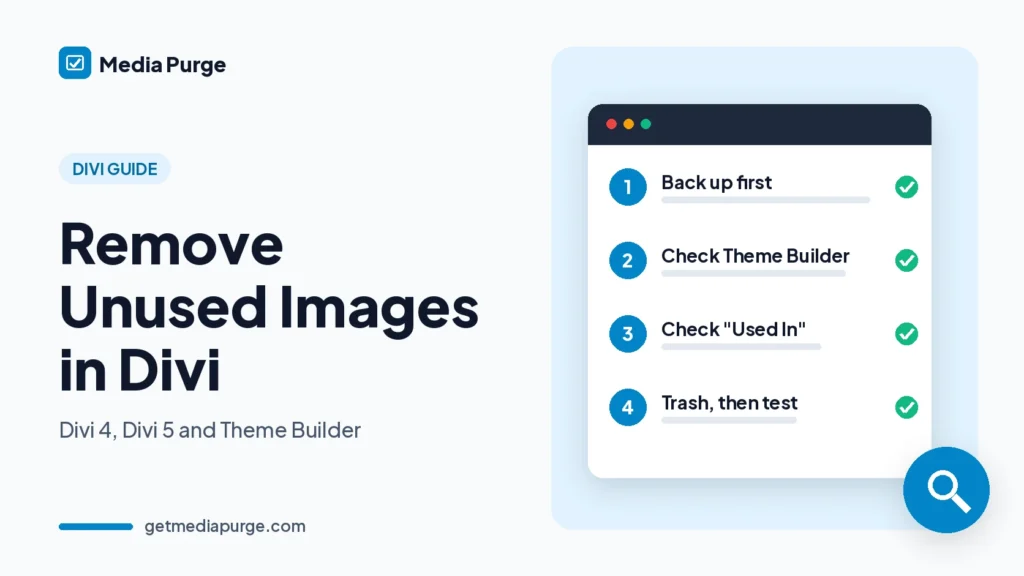
Every Divi redesign, layout pack and new header leaves old backgrounds, logos and gallery photos in the Media Library. Removing them is where Divi gets risky: Divi keeps image references in places a basic cleaner doesn’t read, and since Divi 5 it saves pages in a different format. This guide shows how to remove unused images in Divi safely: where Divi 4 and Divi 5 store images, read-only checks you can run, and a cleanup you can undo.
Why Divi images look unused to some cleaners
The Media Library decides whether a file is “attached” by where it was uploaded, not by where it’s used. On a Divi site most images are chosen from the library inside the Visual Builder, so many live images show as Unattached. Filtering by Unattached and deleting is the fastest way to break a Divi layout.
Cleaners that read only normal post content have the same blind spot. In a June 2023 thread on the WordPress.org support forum, a Divi user wrote that a Media Cleaner scan “marked most of my images as ‘not found in content’ although they are all used”. The plugin’s author replied that Divi is only handled by the Pro version, and Media Cleaner’s WordPress.org page still lists Divi Builder under Pro. So the first question to ask of any tool is whether it reads Divi at all.
Where Divi keeps image references
Divi stores most images as URLs or attachment IDs inside its own layout data, not as plain <img> tags. Here is where to look:
| Image | Where it’s stored | Why it’s easy to miss |
|---|---|---|
| Divi 4 pages and posts | Shortcodes in post content, for example [et_pb_image src="..."], background_image="..." on sections and rows, and gallery_ids="12,34" on Gallery modules |
Gallery modules store attachment IDs, not URLs, so a search for the file name misses them |
| Divi 5 pages and posts | Serialized blocks in post content, such as <!-- wp:divi/image {...} /-->, with the image URL and attachment ID inside JSON |
A different format from Divi 4. Tools and checks written for shortcodes may not read it |
| Theme Builder headers, footers and body layouts | Their own posts (in Divi 4, the post types et_header_layout, et_body_layout and et_footer_layout, grouped by et_template) |
They appear on every page they’re assigned to, but belong to no page |
| Divi Library items | Saved layouts, sections and modules (post type et_pb_layout) |
Reused across pages, so an image can be “used” by a layout no page shows yet |
| Theme Options logo | The divi_logo URL inside the et_divi option (Divi → Theme Options → General) |
Lives in theme settings, not in any post |
| Custom CSS | url(...) in Theme Options → Custom CSS, or in a module’s Advanced tab |
A CSS-only reference has no attachment ID at all |
| Background videos | MP4 or WebM URLs on sections and rows | Media, not images, so image-only checks skip them |
One more Divi detail: Divi writes the styles you set in the builder into CSS files it generates. Elegant Themes’ February 2026 cache post says the HTML “includes links to CSS files generated by Divi, which include all of the styles you customized in the builder”. A background image can therefore be missing from the page’s HTML source and still load on the page. Viewing the source isn’t a reliable test on Divi.
Divi 5 changed the format
Divi 5 left beta on 26 February 2026. Elegant Themes’ developer docs explain that Divi 4 saved content as shortcodes, while Divi 5 saves it in “serialized block format, the same format that Block Editor / Gutenberg is using”. Upgrading doesn’t convert anything by itself. A page is converted when you open and save it in the Divi 5 Visual Builder, or when you run the Divi 5 Migrator. Third-party modules without a Divi 5 version are kept as a Shortcode Module.
So a site in the middle of a migration can have both formats at once. Even established cleaners are still adjusting: Media Cleaner’s changelog lists Divi parser updates in November 2025 and in January and September 2026. Check which format your pages use before you trust any “unused” list.
What Media Purge checks on a Divi site
Media Purge is a free unused media scanner on WordPress.org. According to its readme, the free version scans images in Divi module meta and layout data, for the Divi theme or the Divi Builder plugin. It also checks post content, post meta, widget areas, Customizer settings, Gutenberg blocks and other supported builders.
Every file has a Used In list with the post title, post type, context and a link to edit that post. On a Divi site, that’s how you confirm a background or gallery photo before you trash it. If a file you know is in use shows no matching Used In entry, don’t trash it.
To be clear about what it doesn’t claim: the readme doesn’t mention Divi 5, Theme Builder layouts, the Divi Library, Divi’s Theme Options logo or custom CSS by name. Don’t assume those are detected. Spot-check them in the Used In list, along with a few section or row background images and Gallery module images, and click Keep (the Whitelist) on anything that isn’t shown as used so it’s excluded from future results.
How to remove unused images in Divi safely
1. Back up, and use staging if you can
Back up the database and the wp-content/uploads folder, and make sure you know how to restore them. Elegant Themes recommends a staging site for Divi 5 upgrades, and the same advice applies to a media cleanup.
2. Don’t clean up in the middle of a Divi 5 migration
Finish the migration first. The Divi 5 Migrator keeps a backup copy of your Divi 4 content for its “Restore Divi 4 Content” button. If you delete images that only the old content uses and then roll back, those pages lose their images.
3. Build a keep list
Before you scan, list the images that live outside normal pages: the Theme Options logo, Theme Builder header and footer images, reused Divi Library layouts, and any image in custom CSS. The read-only checks and manual checks below help.
4. Run a read-only scan
Install Media Purge, go to Media → Media Purge and complete the setup wizard. Set recent-upload protection so new uploads aren’t flagged, and check the trash retention period. Then click Run Scan Now. The scanner is read-only, so nothing moves or changes during the scan.
5. Spot-check three known Divi images first
Test the scan against images you know are live: a section background, a Gallery module image and your Theme Builder header logo. If each has a Used In entry, you can trust the results more. If one doesn’t, whitelist that type of image and check it by hand.
6. Review the list, then whitelist your keep list
Export the unused list to CSV as a record, then mark every file from your keep list as Keep (you can bulk-whitelist). Old layout-pack images, replaced backgrounds and test uploads are usually the safe wins.
7. Trash in small batches
Move files to Media Purge’s internal trash a batch at a time. It isn’t a permanent delete. If a page breaks after 30 files, you can find the cause quickly. After 800, you can’t.
8. Clear Divi’s CSS cache, then test like a visitor
On Divi 4, go to Divi → Theme Options → Builder → Advanced and click Clear next to Static CSS File Generation. On Divi 5, click the Clear CSS Cache button at the top right of Divi → Theme Options. Then clear your caching plugin, server and CDN caches. Open the home page, key pages, a page for each Theme Builder template, and the mobile view. Look for missing backgrounds and empty galleries.
9. Keep the trash until you’re sure
Trashed files stay recoverable for 30 days by default, and you can change the retention period in Settings. If an image is missing, restore it from the Recovery tab. Use Delete Permanently only after your key pages have looked right for a while.
Read-only checks with WP-CLI and SQL
These commands only read data (SELECT, post list and option get). They don’t change anything. Replace wp_ with your table prefix, and replace 123 with the attachment ID you’re checking (you’ll find it in the Media Library as item=123 in the address bar).
Which format each content type uses (Divi 4 shortcodes or Divi 5 blocks):
wp db query "SELECT post_type, SUM(post_content LIKE '%[et_pb_%') AS divi4, SUM(post_content LIKE '%<!-- wp:divi/%') AS divi5 FROM wp_posts WHERE post_type <> 'revision' GROUP BY post_type"Theme Builder layouts and Divi Library items:
wp post list --post_type=et_template,et_header_layout,et_body_layout,et_footer_layout,et_pb_layout --post_status=any --fields=ID,post_type,post_status,post_titleWhere a file name appears (pages, posts, Theme Builder layouts and Library items):
wp db query "SELECT ID, post_type, post_status, post_title FROM wp_posts WHERE post_type <> 'revision' AND post_content LIKE '%hero-photo%'"Use the file name without the extension or size suffix, because Divi may store a resized URL such as hero-photo-1024x683.jpg.
Divi 4 Gallery modules that use attachment ID 123:
wp db query "SELECT ID, post_type, post_title FROM wp_posts WHERE post_type <> 'revision' AND post_content REGEXP 'gallery_ids=.([0-9]+,)*123(,[0-9]+)*[^0-9,]'"Divi 5 blocks that store attachment ID 123:
wp db query "SELECT ID, post_type, post_title FROM wp_posts WHERE post_type <> 'revision' AND post_content LIKE '%wp:divi/%' AND post_content REGEXP '.id.:123[,}]'"The Theme Options logo:
wp option get et_divi --format=json | grep -o '"divi_logo":"[^"]*"'A match means “check this before you delete it”, not proof the image is visible (an unassigned Theme Builder template still matches). A miss means “not found here”, not “unused”.
Manual checks without SSH
- Theme Builder: open Divi → Theme Builder and edit each header, body and footer layout. Note the logo, background and icon images.
- Divi Library: open Divi → Divi Library and check saved sections and modules you reuse, especially global ones.
- Theme Options: note the logo under General, and search the Custom CSS box for
url(. - Browser DevTools: open a page, then the Network tab, filter by Img and reload. Every image the page loads is listed, including backgrounds from Divi’s CSS files that View Source doesn’t show.
Common mistakes on Divi sites
- Forgetting the Theme Builder. A header logo appears on every page but belongs to none of them.
- Cleaning mid-migration. Pages in two formats, plus a Divi 4 backup you may restore later, make the results harder to trust.
- Checking View Source only. Background images can sit in Divi’s generated CSS files, not in the HTML.
For the general method, read how to find unused images in WordPress. For the wider process (orphan files, thumbnail bloat, what to compress instead of delete), see the WordPress media library cleanup guide. Layout packs often add the same photo twice, so find duplicate images as a separate step. If some of your pages use Elementor, also see how to remove unused images in Elementor. If some pages were built with WPBakery, see how to remove unused images in WPBakery. To see the full scan → review → trash → restore flow, read how Media Purge works.
FAQ
Why does my media cleaner say Divi images are unused?
Usually because it doesn’t read Divi’s layout data, or reads only one format. Divi 4 uses shortcodes, Divi 5 uses serialized blocks, and Theme Builder layouts and the logo live outside your pages.
Does Media Purge scan Divi in the free version?
Yes. Its readme lists images in Divi module meta and layout data as scanned in the free version, for the Divi theme or the Divi Builder plugin. It doesn’t mention Divi 5, Theme Builder layouts or the Theme Options logo by name, so spot-check those (plus a few background and gallery images) and click Keep on anything not shown as used.
Will removing unused images make my Divi site faster?
Probably not noticeably. Unused files aren’t loaded by your pages. What you get is a smaller uploads folder, smaller backups and a Media Library that’s easier to manage. For speed, look at the size and format of the images your pages actually load.
I deleted a Divi image by mistake. What now?
If you used Media Purge’s trash, restore it from the Recovery tab during the retention period, then clear Divi’s CSS cache. If it was permanently deleted, restore it from your backup. A re-uploaded file gets a new URL and ID, so you’ll need to select it again in the module.
Sources (checked 18 October 2026): Media Purge on WordPress.org · Divi Dev Docs: content formatting · Elegant Themes: Divi 5 official (Feb 2026) · Elegant Themes: cache improvements for Divi 5 (Feb 2026) · Divi help: display issues after updating Divi · Divi help: display issues after updating Divi 5 · WordPress.org support thread (June 2023) · Media Cleaner on WordPress.org · WP-CLI: wp post list.