Last checked: 17 October 2026. Media Purge details are from its WordPress.org readme (version 1.4.6). Elementor details are from Elementor’s own developer and help documentation. Media Cleaner details are from its WordPress.org listing and support forum. Disclosure: we make Media Purge.
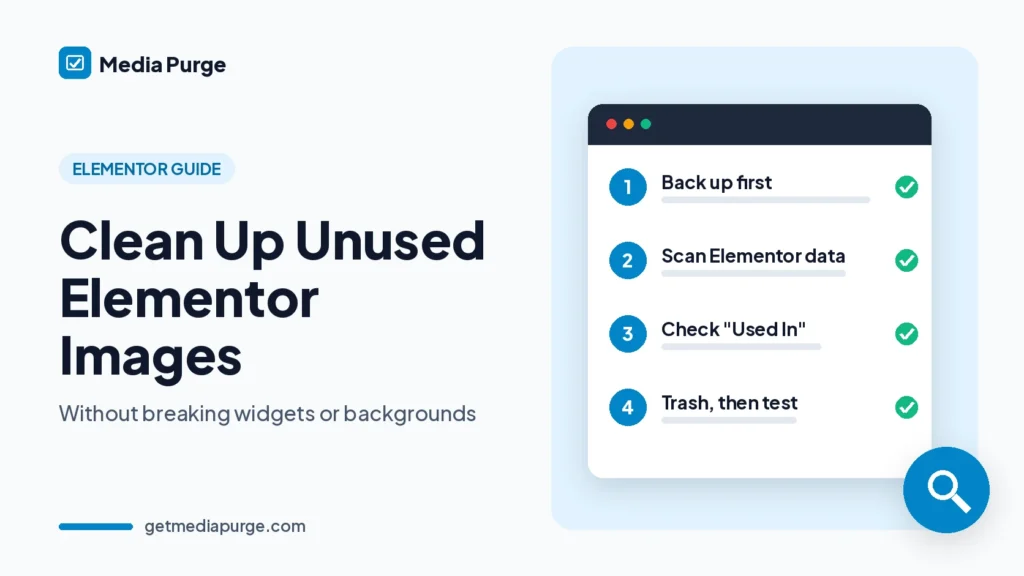
Elementor sites are where media cleanups most often go wrong. You run a cleaner, it lists hundreds of “unused” images, you delete them, and the hero banner, a section background or the footer logo is gone. The images were in use the whole time. The cleaner just didn’t look where Elementor keeps them. This guide shows how to remove unused images in Elementor safely: where Elementor stores image references, which checks to do by hand, and a cleanup workflow you can undo if something slips through.
Why Elementor images look unused to some cleaners
A classic WordPress post keeps its images in the post content as <img> tags, which any cleaner can read. Elementor works differently. Its developer documentation says that when you click Save in the editor, Elementor stores the page layout as JSON in a private custom field (WordPress post meta) that you don’t see in the dashboard. Image widgets, galleries and section backgrounds all live in that JSON, not in the post content.
So a cleaner that only reads post content, or that relies on the Media Library’s “Unattached” filter, will report Elementor images as unused. “Unattached” only means the file wasn’t uploaded from inside a particular post. It says nothing about whether a page shows it. We explain that difference in more detail in how to find unused images in WordPress.
This isn’t a theoretical risk. In a May 2023 WordPress.org support thread for Media Cleaner, a user on Elementor and Astra reported that the cleanup had removed header and footer images that were live on the site. The plugin author replied that Elementor is only supported in the Pro version. On 17 October 2026 the Media Cleaner listing on WordPress.org (free version 7.3.1, 90,000+ active installs) still lists Elementor under the Pro version’s “extra support for complex plugins.” That’s a fair business choice, but it means the free scan isn’t built for Elementor layouts. If you use it on an Elementor site, check every result by hand.
Where Elementor keeps image references
Before you trust any “unused” list, know the places an Elementor site can use an image. Some are inside the page JSON, and some are not.
| Where | Examples | Why it’s easy to miss |
|---|---|---|
| Widgets in page JSON | Image, Image Box, Gallery, Image Carousel, Testimonial photos | Not in post content, so content-only scans miss them |
| Backgrounds | Section, column and container backgrounds, hover backgrounds, background slideshows | Tablet and mobile can have their own background images, so the desktop view looks fine while mobile breaks |
| Templates | Saved sections, Theme Builder headers, footers and single templates, popups (Elementor Pro) | Stored as Elementor template entries, not as normal pages, and popups only show on a trigger |
| Site-wide settings | Site logo, favicon, site settings backgrounds | They appear on every page but sit outside any single page |
| Code | Custom CSS, HTML widgets, custom code snippets with hardcoded image URLs | The image is a URL in text, not a media ID |
| Dynamic content | Dynamic tags that pull a featured image or custom field image | The page shows the image, but the layout only stores a rule, not the file |
| Revisions and drafts | An old version of a page that used a different hero | Restoring that revision later brings back a reference to a file you may have deleted |
What Media Purge checks on an Elementor site
Media Purge is a free unused media scanner on WordPress.org, and Elementor scanning is part of the free version. According to its readme, it reads image widgets, background images and gallery elements in Elementor’s JSON data. It also checks post content, post meta (including featured images and WooCommerce product galleries), widget areas, Customizer settings, Gutenberg blocks, and Divi, WPBakery and Beaver Builder layouts.
The part that matters most on Elementor sites is the Used In list. Each file shows where it was found, with the post title, post type and context, for example “Elementor widget in ‘Home’”, and a link to edit that page. You can check an image quickly instead of hunting through every layout.
Be clear about what it doesn’t claim. The readme doesn’t list theme files, custom CSS, HTML widget code, Elementor site settings or ACF fields. It describes Elementor JSON data in general and doesn’t name template types (headers, footers, popups) separately. Treat those as things to verify yourself, and mark anything you rely on as Keep (the Whitelist) so it never shows up as unused again. For a feature-by-feature view against Media Cleaner, see Media Purge vs Media Cleaner.
How to remove unused images in Elementor safely
1. Back up, and use staging if you have it
Take a full backup of files and database before you start. If your host offers a staging copy, do the first cleanup there and repeat it on live once you know what breaks and what doesn’t.
2. List the pages that must not break
Write down your homepage, top landing pages, the header and footer, any popups and your main product or service pages. Take screenshots on desktop and mobile. Responsive backgrounds are the most common thing people miss, and before/after screenshots catch them fast.
3. Run a read-only scan
Install Media Purge from WordPress.org, go to Media → Media Purge, and complete the short setup wizard. Set recent-upload protection so files you just uploaded for a page you’re still building aren’t flagged. Then click Run Scan Now. The scanner is read-only, so nothing moves or changes during the scan.
4. Review the list before you select anything
Filter by file type to focus on images. For anything that looks like a design asset (logos, icons, patterns, hero images, team photos), stop and check it by hand using the methods in the next section. Old product shots, replaced banners and test uploads are usually the safe wins. Export the list to CSV first, so you have a record of what you reviewed.
5. Whitelist what the scan can’t see
If you find an image in custom CSS, a popup, the site logo or an HTML widget, click Keep. You can bulk-whitelist many files at once. This step is what makes the next scan cleaner and safer.
6. Trash in small batches
Move files to Media Purge’s internal trash in batches rather than all at once. It isn’t a permanent delete. If a page breaks after a batch of 30 files, it’s easy to work out which one caused it. After 800, it isn’t.
7. Clear caches, then test like a visitor
A cached page can hide a missing image for days. Clear your caching plugin or host cache, and clear Elementor’s generated files with its Clear Files & Data tool. Elementor’s help center says to back up first and lists the tool under Elementor → Editor → Home → Tools. Then open your must-not-break pages in a private window on desktop and mobile, trigger your popups, and compare them with your screenshots.
8. Keep the trash until you’re sure
Trashed files stay recoverable for 30 days by default, and you can change the retention period in Settings. If something is missing, restore it from the Recovery tab in one click and it goes back to the library. Use Delete Permanently only once your key pages have looked right for a while.
Manual checks: is this image used in Elementor?
When a file looks important, use one or more of these checks before you trash it:
- Check Used In. If Media Purge lists a page, open the edit link and confirm where the image sits.
- Search the page source. Open a key page, view the source in your browser and search for the filename (for example
hero-banner). This also catches images loaded from CSS and site-wide templates. Elementor usually writes page styles to CSS files, so check the linked stylesheets too, or search a cached copy. - Open your templates. In Templates (Saved Templates, Theme Builder and Popups if you use Pro), open the header, footer and popups and look for the image.
- Search the database (developers). Elementor stores image URLs in its layout JSON, so a filename search finds them even though the slashes are escaped. With WP-CLI:
wp db query "SELECT post_id FROM wp_postmeta WHERE meta_key='_elementor_data' AND meta_value LIKE '%hero-banner%'". Adjust the table prefix for your site, and run it on a copy if you’re unsure.
Common mistakes on Elementor sites
- Deleting everything in “Unattached”. Elementor images are often unattached and still in use.
- Checking only desktop. Tablet and mobile backgrounds are separate settings.
- Forgetting popups and Theme Builder parts. They don’t appear when you browse page by page.
- Emptying the trash the same day. Some breakages only show up when a visitor triggers a popup or lands on an old page.
- Cleaning right after a redesign. Old drafts and revisions can still point to files. Decide whether you need those revisions before you delete the files they reference.
For the wider cleanup process (thumbnails, orphan files, what to compress instead of delete), read the WordPress media library cleanup guide. If your library also holds the same image uploaded several times, find duplicate images separately. That’s a different problem from unused files. If you also manage Divi or WPBakery sites, see how to remove unused images in Divi and how to remove unused images in WPBakery. To see the full scan → review → trash → restore flow, read how Media Purge works.
FAQ
Why does my media cleaner say Elementor images are unused?
Elementor saves layouts as JSON in post meta rather than in post content. A cleaner that doesn’t parse that data can’t see the images inside widgets and backgrounds, so it reports them as unused. Check whether your cleaner supports Elementor in the version you have installed, free or paid.
Is it safe to delete “Unattached” images on an Elementor site?
No, not on that basis alone. “Unattached” only means the file wasn’t uploaded from inside a post. Many images used in Elementor widgets, backgrounds and templates are unattached. Check where each file is used first.
Does Media Purge scan Elementor in the free version?
Yes. Its readme lists Elementor image widgets, background images and gallery elements as scanned in the free version, along with Divi, WPBakery and Beaver Builder. For things it doesn’t read, such as custom CSS or theme files, use the Whitelist.
Will removing unused images make my Elementor site faster?
Probably not noticeably. Unused files aren’t loaded by your pages, so removing them doesn’t change what visitors download. What you get is a smaller uploads folder, smaller backups and a media library that’s easier to manage. For page speed, look at the size and format of the images your pages actually load.
I deleted an Elementor image by mistake. What now?
If you used Media Purge’s trash, restore the file from the Recovery tab during the retention period. If it was permanently deleted, restore it from your backup. If you re-upload it instead, it may get a new media ID and URL, so you may need to select the image again in the Elementor widget or background setting.
Sources: Media Purge on WordPress.org · Elementor data structure (developer docs) · Elementor: Clear Files & Data · Media Cleaner on WordPress.org · Media Cleaner support thread (May 2023).