Last checked: 20 October 2026. Media Purge details are from its WordPress.org readme (version 1.4.6). WPBakery details are from WPBakery’s developer documentation. Disclosure: we make Media Purge.
Years of WPBakery pages leave a lot behind in the Media Library: old row backgrounds, replaced hero images, gallery photos from pages nobody visits. Removing them is risky because WPBakery saves most images as attachment IDs inside its shortcodes, not as normal image tags, so a file can look unused while a live page still shows it. This guide shows how to remove unused images in WPBakery safely: where WPBakery stores images, read-only checks you can run, and a cleanup you can undo.
Why WPBakery images look unused
The Media Library’s Uploaded to column shows the post a file was first uploaded to, not where it’s used. In WPBakery you pick images from the library inside an element’s settings, so most images on a WPBakery page show as “(Unattached)”, or as attached to a page they no longer appear on. Filtering by Unattached and deleting is a quick way to break a WPBakery layout.
Cleaners that don’t read WPBakery shortcodes have the same blind spot. In a March 2020 thread on the WordPress.org support forum, a BeTheme and WPBakery user wrote that a Media Cleaner scan “marked some files as unused, but are used on page”. The plugin’s author replied that “WPBakery and Revolution Slider support is only available in the Pro”. In June 2024 another user wrote that the scan “returned all my images” and asked whether the free version detects images added with WPBakery. Media Cleaner’s WordPress.org page still lists WPBakery Page Builder under its Pro version. So the first thing to check in any tool is whether it reads WPBakery at all, and which WPBakery elements.
Where WPBakery keeps image references
WPBakery saves each page as shortcodes in the post content. Most images are stored as one attachment ID, a list of IDs or a URL inside CSS, and a few sit inside HTML. Here is where to look:
| Image | Where it’s stored | Why it’s easy to miss |
|---|---|---|
| Single Image element | An attachment ID in the shortcode, for example [vc_single_image image="123"] |
Only the ID is saved, so a search for the file name finds nothing |
| Parallax and other image settings | A single ID in a parameter ending in _image, such as parallax_image="123" on rows and sections. Theme and add-on elements often add their own image parameters |
Again an ID, not a URL. Add-on elements may use any parameter name |
| Design Options backgrounds | A URL in the element’s css attribute, for example background-image: url(https://example.com/wp-content/uploads/2026/03/hero.jpg?id=123). WPBakery also copies this CSS into the post meta field _wpb_shortcodes_custom_css |
The image is a CSS background, never an <img> tag, so image-tag checks skip it |
| Image Gallery and Image Carousel | A comma-separated list of IDs: [vc_gallery images="12,34,56"] and [vc_images_carousel images="12,34,56"] |
A list of numbers, with no file names at all |
| Media Grid and Masonry Media Grid | A list of IDs in include="12,34,56" |
Same as galleries |
| Raw HTML element | Your HTML, URL-encoded and then base64-encoded, for example [vc_raw_html]JTNDaW1nJTIwc3Jj...[/vc_raw_html] |
The file name is encoded, so no text search will find it |
| Text Block and other HTML | Normal <img src="..."> tags inside elements such as [vc_column_text] |
The easiest kind to find |
| Saved templates | Templates you save under My Templates are kept in the wpb_js_templates option, not in a page |
A template can hold images that no page shows yet |
Many themes bundle WPBakery and add their own elements, such as sliders, hover boxes and team members. Each one stores images in its own parameters, so check a few of those by hand too.
What Media Purge checks on a WPBakery site
Media Purge is a free unused media scanner on WordPress.org. Its readme lists WPBakery Page Builder as scanned in the free version, with this description: “Images referenced in [vc_*] shortcode attributes”. In practice, the scan reads the WPBakery shortcodes in your post content. It picks up Single Image elements and other image settings that hold one attachment ID (such as a row’s parallax image), plus upload URLs written into the content, such as Design Options background images on rows and columns. The WPBakery part of the scan runs only while WPBakery is active, so scan with WPBakery switched on.
Every file has a Used In list with the post title, post type, context and a link to edit that post. That’s how you confirm a WPBakery image before you trash it. If a file you know is in use has no matching Used In entry, don’t trash it.
Give galleries extra care: Image Gallery, Image Carousel and Media Grid elements store their images as a list of IDs, so check those photos yourself rather than relying on the scan alone. Spot-check your gallery and carousel images before you trash anything, and click Keep (the Whitelist) on each one so it’s excluded from future results. The readme also doesn’t name Raw HTML elements, saved templates or theme-specific elements, so treat those the same way.
How to remove unused images in WPBakery safely
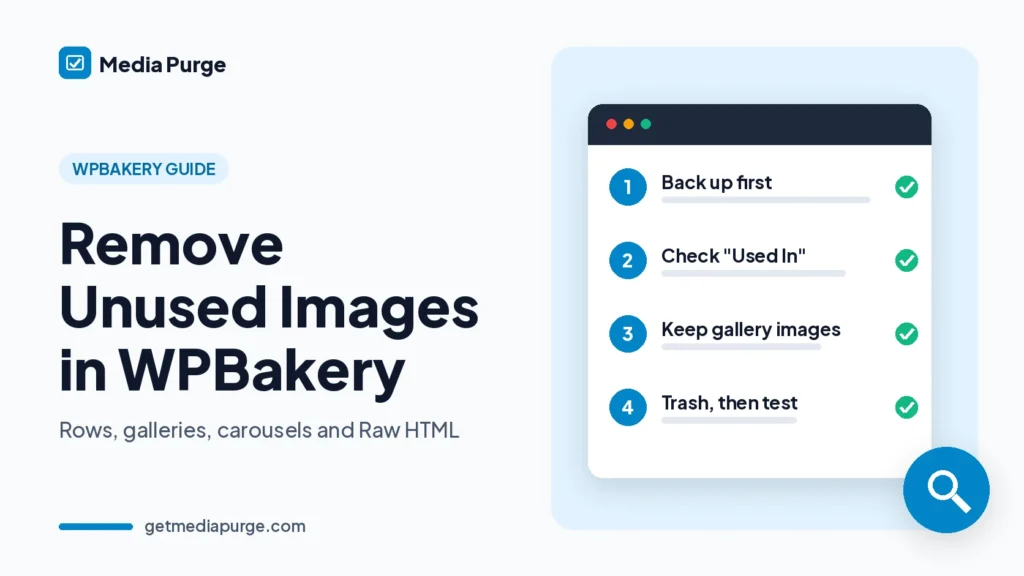
1. Back up, and use staging if you can
Back up the database and the wp-content/uploads folder, and make sure you know how to restore them. A staging copy lets you test the cleanup without touching the live site.
2. Build a keep list
Before you scan, list the images that a scan may not connect to a page: every Image Gallery, Image Carousel and Media Grid image, images in Raw HTML elements, images in saved templates, and images in theme-specific elements or theme options. The read-only checks and manual checks below help you find them.
3. Run a read-only scan with WPBakery active
Install Media Purge, go to Media → Media Purge and complete the setup wizard. Set recent-upload protection so new uploads aren’t flagged, and check the trash retention period. Keep WPBakery active, then click Run Scan Now. The scanner is read-only, so nothing moves or changes during the scan.
4. Spot-check three known WPBakery images first
Test the results against images you know are live: a Single Image, a row background set in Design Options, and one image from a gallery or carousel. The first two should have a Used In entry. Don’t rely on the gallery image’s result either way: gallery and carousel images stay on your keep list whatever the scan shows.
5. Review the list, then whitelist your keep list
Export the unused list to CSV as a record, then mark every file from your keep list as Keep (you can bulk-whitelist). Old hero images, replaced backgrounds and test uploads are usually the safe wins.
6. Trash in small batches
Move files to Media Purge’s internal trash a batch at a time. It isn’t a permanent delete. If a page breaks after 30 files, you can find the cause quickly. After 800, you can’t.
7. Clear caches, then test like a visitor
Clear your caching plugin, server and CDN caches. Then open the home page, your main landing pages, every page with a gallery, carousel or media grid, and the mobile view. Look for empty galleries, carousels with missing slides and rows that have lost their background.
8. Keep the trash until you’re sure
Trashed files stay recoverable for 30 days by default, and you can change the retention period in Settings. If an image is missing, restore it from the Recovery tab. Use Delete Permanently only after your key pages have looked right for a while.
Read-only checks with WP-CLI and SQL
These commands only read data (SELECT queries and a wp eval that prints text). They don’t change anything. Replace wp_ with your table prefix, replace 123 with the attachment ID you’re checking (you’ll see it in the Media Library as item=123 in the address bar), and replace hero-photo with part of the file name.
Which content types use WPBakery:
wp db query "SELECT post_type, post_status, COUNT(*) AS items FROM wp_posts WHERE post_type <> 'revision' AND post_content LIKE '%[vc_%' GROUP BY post_type, post_status"Where a file name appears (Text Blocks, HTML and Design Options backgrounds):
wp db query "SELECT ID, post_type, post_status, post_title FROM wp_posts WHERE post_type <> 'revision' AND post_content LIKE '%hero-photo%'"Use the file name without the extension or size suffix, because the content may hold a resized URL such as hero-photo-1024x683.jpg.
Single Image elements, image settings and backgrounds that use ID 123:
wp db query "SELECT ID, post_type, post_title FROM wp_posts WHERE post_type <> 'revision' AND post_content REGEXP '(image=.|[?]id=)123[^0-9]'"Galleries, carousels and media grids that include ID 123:
wp db query "SELECT ID, post_type, post_title FROM wp_posts WHERE post_type <> 'revision' AND post_content REGEXP '(images|include)=.([0-9]+,)*123(,[0-9]+)*[^0-9,]'"Saved templates that use the file or ID 123:
wp db query "SELECT option_name FROM wp_options WHERE option_name = 'wpb_js_templates' AND (option_value LIKE '%hero-photo%' OR option_value REGEXP '(image=.|[?]id=|images=.([0-9]+,)*)123[^0-9]')"Pages with Raw HTML elements, then the decoded HTML of one page (replace 45 with the page ID from the first command):
wp db query "SELECT ID, post_type, post_title FROM wp_posts WHERE post_type <> 'revision' AND post_content LIKE '%[vc_raw_html%'"wp eval 'preg_match_all("/\[vc_raw_html[^\]]*\](.*?)\[\/vc_raw_html\]/s", get_post_field("post_content", 45), $m); foreach ($m[1] as $b) { echo rawurldecode(base64_decode($b)), "\n"; }'A match means “check this before you delete it”, not proof the image is visible (a draft or an unused template still matches, and include= is also used by other grid elements). A miss means “not found here”, not “unused”.
Manual checks without SSH
- Galleries and carousels: open each page in the WPBakery editor, edit every Image Gallery, Image Carousel and Media Grid element, and note the images it shows.
- Design Options: on rows, columns and sections, open the Design Options tab and note any background image.
- Raw HTML: open each Raw HTML element. The editor shows the decoded HTML, so you can read the image URLs there.
- Templates: open the Templates panel, check My Templates, and add any images you still plan to use to the keep list.
- Browser DevTools: open a page, then the Network tab, filter by Img and reload. Every image the page loads is listed, including CSS backgrounds and carousel slides.
Common mistakes on WPBakery sites
- Trusting the Uploaded to column. “(Unattached)” describes where a file was uploaded, not whether it’s used.
- Searching by file name only. Single Image, gallery and carousel elements store IDs, so a file name search misses them.
- Cleaning up after deactivating WPBakery. The shortcodes stay in your content, and pages you haven’t rebuilt still point to those images by ID.
- Forgetting the carousel. A carousel shows one slide at a time, so a quick look at the page won’t show every image it uses.
For the general method, read how to find unused images in WordPress. For the wider process (orphan files, thumbnail bloat, what to compress instead of delete), see the WordPress media library cleanup guide. If some of your pages are built with another builder, see how to remove unused images in Elementor or how to remove unused images in Divi.
FAQ
Why does my media cleaner say WPBakery images are unused?
Usually because it doesn’t read WPBakery shortcodes, or reads only some of them. WPBakery stores most images as attachment IDs, galleries and carousels as lists of IDs, backgrounds as CSS URLs and Raw HTML in encoded form.
Does Media Purge scan WPBakery in the free version?
Yes. Its readme lists images referenced in WPBakery [vc_*] shortcode attributes as scanned in the free version. It reads Single Image elements, other single-image settings and upload URLs such as Design Options backgrounds. Image Gallery, Image Carousel and Media Grid elements store lists of IDs, so spot-check those images (plus Raw HTML and saved templates) and click Keep on anything not shown as used.
I’ve deactivated WPBakery. Is it safe to clean up now?
Not yet. Deactivating WPBakery leaves its shortcodes in your content, and any page you haven’t rebuilt still points to its images by ID. Media Purge’s WPBakery check also runs only while WPBakery is active. Rebuild or remove the old pages first, or reactivate WPBakery for the scan.
I deleted a WPBakery image by mistake. What now?
If you used Media Purge’s trash, restore it from the Recovery tab during the retention period, then clear your caches. If it was permanently deleted, restore it from your backup. A re-uploaded file gets a new ID, and WPBakery elements store the ID, so you’ll need to select the image again in each element.
Sources (checked 20 October 2026): Media Purge on WordPress.org · WPBakery docs: attach_image · WPBakery docs: attach_images · WPBakery docs: css_editor (Design Options) · WPBakery docs: textarea_raw_html · WPBakery docs: templates · WordPress.org support thread (March 2020) · WordPress.org support thread (June 2024) · Media Cleaner on WordPress.org · WP-CLI: wp db query.