Last checked: 17 October 2026. Media Purge details are from its WordPress.org readme (version 1.4.6). WooCommerce storage details are from WooCommerce’s documentation, developer blog and source code. Disclosure: we make Media Purge.
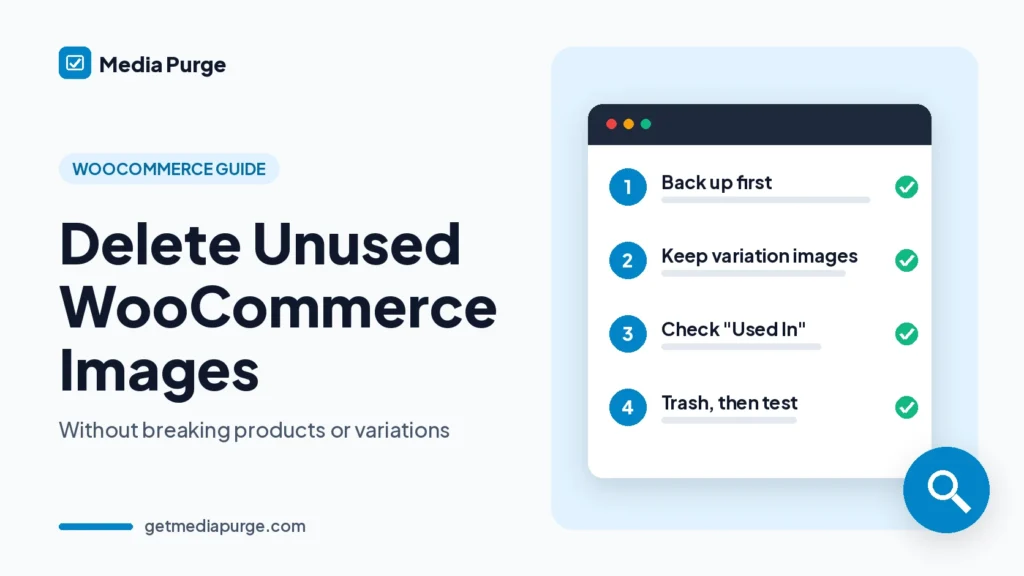
WooCommerce stores pile up images fast. Products get new photos and old products get deleted. WooCommerce doesn’t delete a product’s images when you delete the product, so the files stay in your Media Library. But a store is also the easiest place to break things: delete the wrong file and a product page, a variation or a category tile goes blank while customers shop. This guide shows how to delete unused WooCommerce product images safely. It covers why the “Unattached” filter misleads you, where WooCommerce stores image references, read-only checks you can run, and a cleanup you can undo.
Why “Unattached” is a dangerous filter for WooCommerce stores
The Media Library’s “Unattached” filter shows files that aren’t attached to a post or page. In WordPress, attached means the file was uploaded from inside that post, so it has a parent. It doesn’t mean the file is used there, and unattached doesn’t mean unused. On a store, plenty of live product images are unattached:
- Images you picked from the existing library for a gallery or a variation, rather than uploading them from that product.
- Images added by a sync tool or the WooCommerce REST API. A 2023 WooCommerce GitHub issue (#37114) reported that products created through the API didn’t have their media attached. It was closed later that year as addressed, but a fix doesn’t change images that were already imported.
- Category thumbnails, the placeholder image and your email logo, which belong to settings, not to a post.
Real stores have lost live product images this way. In a June 2024 thread on the WooCommerce support forum, a store owner wrote that a cleanup with Media Cleaner “ended up deleting images of products that are still listed”. They traced it to product images that were displayed on the site but showed as unattached. Some guides still tell you to filter by Unattached and choose Delete Permanently. On a WooCommerce store, don’t. We explain the general difference in how to find unused images in WordPress.
Where WooCommerce keeps product image references
WooCommerce mostly stores images as attachment IDs in post meta, term meta and options, not as <img> tags in content. That’s why content-only checks miss them. Here is where to look:
| Image | Where it’s stored | Why it’s easy to miss |
|---|---|---|
| Product image (main) | _thumbnail_id meta on the product |
An ID in meta, not in the description |
| Product gallery | _product_image_gallery meta on the product, a comma-separated list of IDs |
Gallery images are often picked from the library, so they’re unattached |
| Variation image | _thumbnail_id on each product_variation post, a child of the product |
Only shows when a shopper picks that size or colour |
| Variation gallery | _product_image_gallery on the variation (WooCommerce 11.1 and later). The older Additional Variation Images extension used _wc_additional_variation_images |
New in core in 2026, so many tools and guides don’t mention it yet |
| Category thumbnail | thumbnail_id term meta on the product category |
Lives on the category, not on any product or page |
| Placeholder image | woocommerce_placeholder_image option (WooCommerce → Settings → Products), an attachment ID or URL |
WooCommerce adds a default placeholder to the Media Library, and it only appears on products with no image |
| Email logo | woocommerce_email_header_image option (WooCommerce → Settings → Emails), a URL |
Only appears in order emails, never on the site |
| Descriptions and shop pages | Images inserted in product descriptions, or shop and landing pages built with blocks or a page builder | Regular content, but easy to forget when you think only about products |
The variation gallery row is new. WooCommerce’s developer blog (1 September 2026) says variation galleries are part of core and enabled for every store from WooCommerce 11.1, with gallery IDs stored in _product_image_gallery on the variation record. If your store used the Additional Variation Images extension, its data is copied to the new key by a background job. If that job is still running, wait before you clean up.
What Media Purge checks in a WooCommerce store
Media Purge is a free unused media scanner on WordPress.org. According to its readme, product featured images and product gallery images are recognised as in use, scanned through post meta. It also checks post content, widget areas, Customizer settings, Gutenberg blocks, and Elementor, Divi, WPBakery and Beaver Builder layouts. The setup wizard includes a WooCommerce scanning setting, so make sure it’s on.
Each file has a Used In list with the post title, post type, context (for example “Featured Image in ‘About Us’”) and a link to edit that post. On a store, that is how you confirm a product photo before you trash it.
To be clear about what it doesn’t claim: the readme lists product featured images and product galleries. It doesn’t list variation images, variation galleries, category thumbnails, the placeholder image or the email logo. Don’t assume those are detected. If a file you know is one of them doesn’t show a matching Used In entry, click Keep (the Whitelist) so it’s never flagged as unused again.
How to delete unused WooCommerce product images safely
1. Back up, and use staging if you can
Back up the database and the wp-content/uploads folder, and know how to restore them. If your host offers staging, run the first cleanup there.
2. Build a keep list
Before you scan, collect the IDs of images WooCommerce uses outside product galleries: variation images, variation galleries, category thumbnails, the placeholder and the email logo. The read-only queries below list them. On a small store, open each variable product’s Variations tab, Products → Categories and the placeholder setting instead.
3. Run a read-only scan
Install Media Purge, go to Media → Media Purge and complete the setup wizard: turn on WooCommerce scanning, set recent-upload protection so new product photos aren’t flagged, and check the trash retention period. Then click Run Scan Now. The scanner is read-only, so nothing moves or changes during the scan.
4. Review the list, then whitelist your keep list
Filter by file type to focus on images and export the unused list to CSV as a record. Check Used In for anything that looks like a current product shot. Then mark every file from your keep list as Keep. You can bulk-whitelist many files at once. Old photos of deleted products, replaced packshots and test uploads are usually the safe wins.
5. Trash in small batches
Move files to Media Purge’s internal trash a batch at a time. It isn’t a permanent delete. If a product breaks after 30 files, you can find the cause quickly. After 800, you can’t.
6. Clear caches and test like a shopper
Clear your page cache and any CDN cache. Then open the shop page, a few category pages, a simple product and a variable product. Select each variation and check its image and gallery. Look at a product with no image to see the placeholder, and send yourself a test order email if you use an email logo.
7. Keep the trash until you’re sure
Trashed files stay recoverable for 30 days by default, and you can change the retention period in Settings. If an image is missing, restore it from the Recovery tab. Use Delete Permanently only after your key pages have looked right for a while.
Read-only checks with WP-CLI and SQL
These queries only read data (SELECT and option get). They don’t change anything. Replace wp_ with your table prefix, and run them on staging or after a backup if you’re unsure.
Product and variation images:
wp db query "SELECT p.ID, p.post_type, pm.meta_value AS image_id FROM wp_postmeta pm JOIN wp_posts p ON p.ID = pm.post_id WHERE pm.meta_key = '_thumbnail_id' AND p.post_type IN ('product','product_variation')"Product and variation galleries (each row is a comma-separated list of IDs):
wp db query "SELECT p.ID, p.post_type, pm.meta_value AS gallery_ids FROM wp_postmeta pm JOIN wp_posts p ON p.ID = pm.post_id WHERE pm.meta_key = '_product_image_gallery' AND pm.meta_value <> ''"Category thumbnails:
wp db query "SELECT t.term_id, t.name, tm.meta_value AS image_id FROM wp_termmeta tm JOIN wp_terms t ON t.term_id = tm.term_id JOIN wp_term_taxonomy tt ON tt.term_id = t.term_id WHERE tm.meta_key = 'thumbnail_id' AND tt.taxonomy = 'product_cat'"Placeholder and email logo:
wp option get woocommerce_placeholder_image
wp option get woocommerce_email_header_image
Is one image (ID 123) used by any product or variation?
wp db query "SELECT post_id, meta_key FROM wp_postmeta WHERE meta_key IN ('_thumbnail_id','_product_image_gallery') AND FIND_IN_SET('123', meta_value)"These queries also return drafts and trashed products. That’s deliberate: if you might restore a product, keep its images too. For a final check, search a product page’s source for the filename.
Do you need to regenerate thumbnails?
Not because of a cleanup. Removing unused images doesn’t change the sizes of the images you keep. Regenerating matters when you change product image sizes or switch theme. WooCommerce queues a background regeneration job in those cases, and you can run it by hand under WooCommerce → Status → Tools → Regenerate shop thumbnails, or with wp media regenerate. If you plan to do both, clean up first, so you don’t create new sizes for files you’re about to remove. Regenerating can’t bring back a deleted original.
Common mistakes on WooCommerce stores
- Bulk-deleting from “Unattached”. Many live product images are unattached.
- Testing only simple products. Variation images only appear when a shopper selects the variation.
- Forgetting settings images. Category thumbnails, the placeholder and the email logo don’t live on any product.
- Deleting images of trashed products. Restore the product later and its gallery is empty. Empty the product trash first if you mean it.
For the wider process (orphan files, thumbnail bloat, what to compress instead of delete), read the WordPress media library cleanup guide. Product photos are easy to upload twice, so find duplicate images as a separate step. To see the full scan → review → trash → restore flow, read how Media Purge works. If your shop pages use Elementor, also see how to remove unused images in Elementor.
FAQ
Does WooCommerce delete product images when I delete a product?
No. In the 2024 support thread mentioned above, WooCommerce’s support team replied that WooCommerce doesn’t automatically delete images when a product is deleted. The same image can also be used by another product, so check before you remove it.
Is it safe to delete unattached images in WooCommerce?
Not on that basis alone. Gallery images, imported images, category thumbnails and the placeholder are often unattached and still in use. Check where each file is used first.
Does Media Purge detect variation images?
Its readme lists product featured images and product gallery images. It doesn’t list variation images, variation galleries, category thumbnails or the placeholder. Check each file’s Used In list, and click Keep on any of those that aren’t shown as used.
Will deleting unused product images make my store faster?
Probably not noticeably. Unused files aren’t loaded by your pages. What you get is a smaller uploads folder, smaller backups and a Media Library that’s easier to manage. For speed, look at the size and format of the images your product pages actually load.
I deleted a product image by mistake. What now?
If you used Media Purge’s trash, restore it from the Recovery tab during the retention period. If it was permanently deleted, restore it from your backup. A re-uploaded file gets a new ID, so you’ll need to select it again on the product, variation or category.
Sources (checked 17 October 2026): Media Purge on WordPress.org · WooCommerce support thread (June 2024) · WooCommerce GitHub issue #37114 (2023) · WooCommerce developer blog: variation images in 11.1 (Sept 2026) · WooCommerce: Products settings · WooCommerce: System Status tools · WordPress: Media Library screen.